
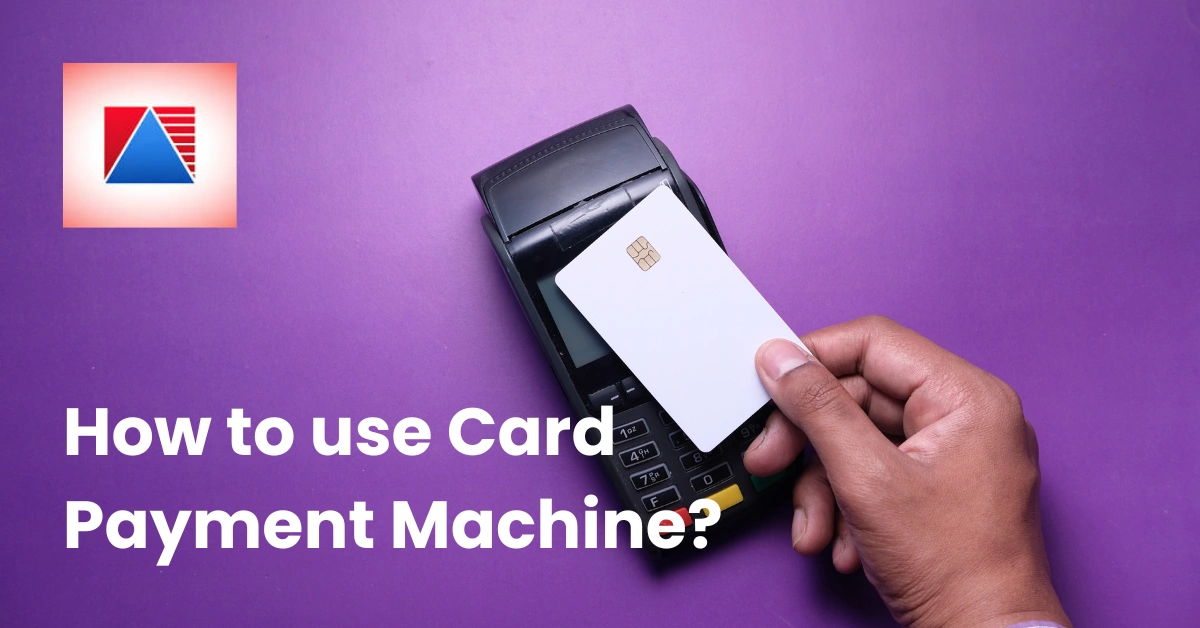
The first time a customer holds out a card and you're staring at a machine you've never used, it's a surprisingly nervous moment. Which button comes first? Where does the card go? What if it says "declined"?
Good news: using a card payment machine is easy once you know the steps, and a few simple habits make it faster and safer. Let's walk through it, from setup to end-of-day, and what to do when things go sideways.
One quick caveat: models and screens differ, so always keep your provider's guide handy. The steps below cover what most machines have in common.
In this article
- The basic steps at a glance
- Before you start
- Setting up for the first time
- Taking a payment, step by step
- Different payment methods
- Refunds and voids
- End-of-day settlement
- Troubleshooting
- Security
- FAQ
The Basic Steps at a Glance
If you just need the short version, here it is:
- Power on and connect the machine.
- Enter the amount.
- Let the customer insert, tap, or swipe their card or phone.
- The customer enters a PIN or signs, if prompted.
- Wait for approval.
- Give the receipt and complete the sale.
The sections below explain each step in more detail.
Before You Start: A Quick Checklist
A little prep at the start of the day saves a lot of stress at the counter. Before your first customer, check that:
- The machine is charged or plugged in.
- It's connected to Wi-Fi, mobile data, or Ethernet.
- There's paper in the printer, if it has one.
- You're logged in with the right user or merchant ID.
- The date and time are correct.
- You know who to call for support.
- The machine looks normal, with no loose parts or odd attachments.
That last one matters more than it sounds, and we'll come back to it in the security section.
How to Set Up Your Card Machine for the First Time
A friend of mine opened a small shop and spent her first afternoon with a new card machine hidden under the counter, too nervous to touch it. When she finally ran a ₱10 test sale, she laughed at how simple it was. (Swap in a real story of your own if you have one.) Here's how to get to that point faster.
- Unbox and inspect. Check that the seals are intact and all the accessories are there.
- Connect power and the internet. Follow your provider's instructions for Wi-Fi, data, or cable.
- Activate the machine. Your provider will usually give you steps or a code.
- Run a small test transaction. Use a low amount, and refund it afterwards if needed.
- Check your first settlement. Make sure the money arrives as expected.
- Link it to your POS, if it supports that. When a machine connects to your checkout, amounts pass automatically. You can browse typical POS hardware to see what fits together, and good POS software can record each payment against the right sale.
How to Take a Card Payment, Step by Step
This is the heart of it. Once you've done it a few times, it takes about ten seconds.
Step 1: Make sure the machine is ready
Wake the screen and check that it shows the main menu or "ready" screen. If it says "no connection" or "low battery," fix that first.
Step 2: Enter the amount
Type in the total, or let your POS send it to the machine automatically. Double-check the number before moving on, because a typo here is the most common cause of mismatched totals.
Step 3: Choose the payment type, if asked
Some machines ask whether it's a sale, a debit transaction, or a credit transaction. Pick the one that matches what the customer wants to do.
Step 4: Let the customer pay
Hand over the machine or point it toward the customer. They can insert their chip card, tap a card or phone, or swipe if the machine asks them to. If the customer isn't sure where to tap, point to the contactless symbol.
Step 5: PIN or signature, if prompted
The customer may need to enter a PIN. Turn the keypad toward them, look away, and never ask for their PIN. If a signature is required, follow the prompts on screen.
Step 6: Wait for the result
Watch the screen for "approved." Don't hand over goods until you see it. If the machine says "declined," don't guess at the reason. Politely ask for another card or another payment method.
Step 7: Print or send the receipt
Give the customer a receipt, printed or digital. Keep the merchant copy if the machine prints one, and make sure receipts meet your local requirements. In the Philippines, check the current rules with the Bureau of Internal Revenue.
Step 8: Record the sale
If your machine isn't linked to your POS, record the sale in your checkout system or sales log so your totals match at the end of the day.
Accepting Different Payment Methods
Customers pay in different ways, and a little guidance goes a long way.
- Chip cards. Insert the card with the chip facing up and leave it in until the machine says to remove it. This is based on the EMV standard, and you can read more at EMVCo.
- Contactless. Cards, phones, and watches can be tapped. Hold the device close to the reader until you hear a beep or see a confirmation.
- Magnetic stripe. Swipe only if the machine prompts you to, since chip and tap are usually preferred.
- QR and e-wallet payments. Some machines support these, and others rely on a separate QR code. Check which ones yours handles before you promise customers.
Want Your Card Machine and Checkout to Work Together?
Typing amounts by hand slows you down and invites mistakes. If you'd like to talk through how payments connect to your checkout, contact the Divergent POS team and ask what's possible for your setup.
How to Handle Refunds, Voids, and Cancellations
Mistakes happen. What matters is knowing which tool to use.
Void vs. refund
- A void cancels a transaction before it's settled, usually on the same day. It's the quickest fix when you've charged the wrong amount.
- A refund returns money to the customer after the transaction has been settled. It usually takes longer to show up on their statement.
General steps
Menus vary by machine, but the process is usually similar:
- Open the refund or void option from the menu.
- Enter your manager or authorization code, if required.
- Find the original transaction or enter the amount.
- Confirm, and print or save the receipt.
Good habits
- Limit who has permission to issue refunds.
- Write down every refund, including the reason.
- If a customer disputes a charge, stay calm and follow your provider's process. For consumer protection guidance in the Philippines, the Bangko Sentral ng Pilipinas is the official source.
Tips, Split Payments, and Special Cases
A few situations come up often enough to be worth knowing:
- Tips. Some machines let customers add a tip before paying, while others need you to enter it. Check how yours works.
- Split bills. Ring up each portion separately, one card at a time, and keep a running total.
- Partial payments. Record them clearly so you know what's still owed.
- Busy periods. Keep the machine within reach, keep the paper stocked, and practice with your team so the line keeps moving.
End-of-Day: How to Settle and Reconcile
At the end of the day, most machines need you to "settle" or "close the batch." That simply tells your provider to total up the day's card payments so the money can be sent to your account.
Here's the usual routine:
- Make sure all sales for the day are done.
- Open the settlement or batch close option on the menu.
- Print or save the report.
- Compare it with your sales. The card total on the report should match the card sales in your POS or sales log.
- Investigate differences right away, while the day is still fresh.
- Keep the reports for your records.
If your numbers don't match, check for voids, refunds, or sales entered by hand that didn't go through the machine. Good reports and add-on POS modules can make reconciling a lot less painful, especially if you handle several payment types.
Troubleshooting: What to Do When Something Goes Wrong
Here's a quick table for the most common problems:
| Problem | What to try |
| Payment declined | Ask for another card or method. Don't guess at the reason. |
| Machine not connecting | Check Wi-Fi or mobile data, restart the machine, and move closer to the router. |
| Card won't read | Clean the chip with a soft cloth, try tapping or swiping, or try another card. |
| Printer not working | Check the paper, make sure the cover is closed, and reload the roll. |
| Frozen screen | Restart the machine. Before retrying, check whether the last sale actually went through. |
| Possible double charge | Check the transaction list or report, and contact your provider if both appear. |
| Power or battery issue | Plug in the charger, check the cable, and try another outlet. |
If nothing works, call your provider. Have your merchant ID, the machine's serial number, and a short description of the problem ready, since that speeds things up.
Keeping Card Payments Secure
Card machines handle sensitive information, so a few good habits go a long way:
- Never write down or store card numbers.
- Never ask for a customer's PIN, and keep the keypad angled so only they can see it.
- Check the machine regularly for tampering, such as loose parts or unfamiliar attachments.
- Keep software updated, following your provider's instructions.
- Limit who can issue refunds and who has access to settings.
- Lock the machine away when you close.
No system is completely risk-free, so avoid anyone who promises otherwise. The PCI Security Standards Council publishes the industry standards for protecting card data, and your provider can tell you which ones apply to your machine.
Training Your Staff
A machine is only as good as the person using it. A short onboarding session pays off quickly:
- Walk through the basic steps together at the counter.
- Practice with test transactions, including a refund.
- Role-play common problems, like a declined card or a frozen screen.
- Put a one-page quick-reference card next to the machine with the main steps and your provider's support number.
I've heard of a cafe owner who taped a small cheat sheet beside the terminal after a new hire froze up during the morning rush. Within a week, her team stopped calling her for help, and checkout times dropped. Sometimes the best training is a note you can glance at while a customer waits.
Using a Card Machine With a POS System
When your machine is linked to a POS, a few things get easier. The amount passes automatically, the payment is recorded against the right sale, and your end-of-day totals line up without extra work.
Different businesses benefit in different ways. A retail POS speeds up checkout lines, a cafe POS handles quick orders and tips, a restaurant POS supports pay-at-table, and a grocery POS copes with high volumes. If you're comparing costs for the whole setup, you can look at the pricing information too.
Common Mistakes to Avoid
- Handing over goods before approval. Wait until you see "approved."
- Retyping amounts by hand. It's the biggest source of mismatched totals.
- Skipping the end-of-day settlement. It can delay your money and make reconciling harder.
- Letting too many people issue refunds. Limit access and keep records.
- Not keeping receipts and reports. You'll want them if there's ever a dispute.
- Ignoring error messages. They usually tell you exactly what's wrong.
Frequently Asked Questions
How do I use a card payment machine for the first time?
Power it on, connect it to the internet, and follow your provider's activation steps. Then run a small test sale, check that the receipt prints, and confirm your first settlement arrives.
How do I process a refund on a card machine?
Open the refund option from the menu, enter your authorization code if required, find the original transaction or enter the amount, and confirm. Menus vary by machine, so check your provider's guide.
Why is my card machine not working?
Common causes include a lost connection, low battery, a card that won't read, or a printer problem. Restart the machine, check the connection and power, and call your provider if it still doesn't work.
Do I need internet to use a card machine?
Most machines need a connection to approve payments. Some offer limited offline options, but those have risks and limits, so ask your provider exactly how yours behaves.
What is the difference between a refund and a void?
A void cancels a transaction before it's settled, usually on the same day. A refund returns money after settlement and often takes longer to show up for the customer.
How do I close the day on a card machine?
Open the settlement or batch close option on the menu, print or save the report, and compare it with your sales.
Ready to Make Payments Simpler?
Using a card machine gets easier every time you do it. Once you've got the basic steps down, add a few good habits, like checking your settlement and training your team, and card payments become one of the smoothest parts of your day.
Want to see how payments and checkout can work together? Book a demo with Divergent POS and find out how much time your team could get back.
