


A friend of mine was opening a small grocery last year, and her supplier told her, "You'll need a POS terminal." She nodded, then called me afterward. "Is that the little card machine," she asked, "or the whole checkout setup with the screen and the drawer?"
Fair question. Everyone says "POS terminal," and they don't always mean the same thing. So here's a plain-English guide to what a POS terminal is, what's inside it, the main types, and how to pick the right one for your business.
What Is a POS Terminal?
The Simple Definition
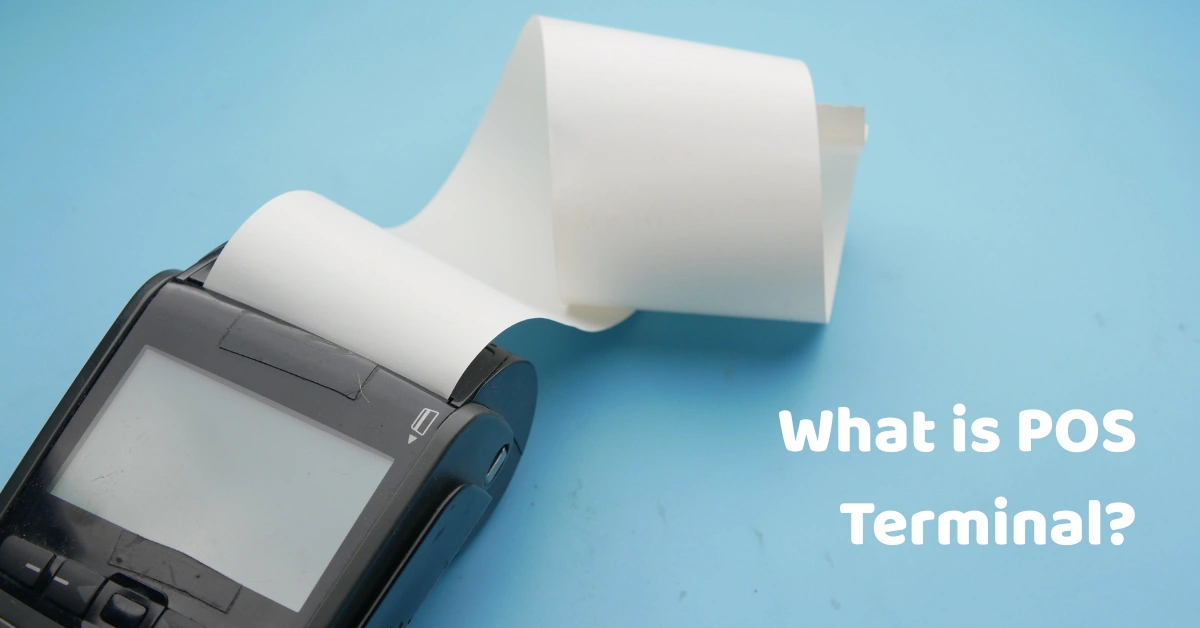
A POS terminal is the hardware where a sale gets completed. It's the place where an order is entered, the total is calculated, payment is taken, and a receipt comes out. Think of it as the front desk of your business: every transaction passes through it.
The Two Meanings
This is where the confusion starts. People use "POS terminal" to describe two related things:
- The checkout workstation: the screen, computer, and connected equipment where staff ring up sales. This is what most shop owners picture.
- The card payment terminal: the small countertop or handheld device that reads cards. It's sometimes called a card reader or an EDC machine.
In many modern setups, the card device connects to, or is built into, the checkout workstation. So when a supplier says "POS terminal," it's worth asking which one they mean.
POS Terminal vs. POS System vs. Cash Register
Here's a quick way to keep the terms straight:
- POS terminal: the hardware where sales happen.
- POS system: the hardware plus the software that runs sales, inventory, reports, and staff controls.
- Cash register: the older, simpler cousin. It mainly stores cash and prints totals, without the reporting and inventory tools.
A terminal without software is just a screen. The software is what turns it into a business tool, which is why it helps to look at both together. You can see how that side works in our POS software.
How a POS Terminal Works
A Sale, Step by Step
A typical sale goes like this:
- Enter the items. The cashier scans barcodes or taps products on the screen.
- Total the order. The terminal calculates the amount, applies any discounts, and adds the required details.
- Take payment. The customer pays with cash, card, an e-wallet, or QR code.
- Issue the receipt. A receipt or invoice prints or gets sent digitally.
- Record the data. The sale updates your sales records and stock levels.
The whole thing takes seconds, but a lot happens in the background. Every sale becomes data you can use later: what sold, when, and who sold it.
Where a Card Payment Goes
When a customer taps or inserts a card, the terminal sends the payment details through a secure connection to the payment processor, which checks with the customer's bank. If it's approved, the answer comes back and the sale is complete. Card security matters here. The PCI Security Standards Council publishes mobile payment acceptance security guidelines that explain how to protect card data when mobile devices are used to take payments. Whichever setup you choose, ask your provider how card data is protected.
When the Internet Drops
This is the question I hear most from small shop owners. Divergent POS lists an offline mode where you keep selling without internet and your data syncs once you're back online. Different systems handle this differently, so ask exactly what still works offline, especially for card payments.
Key Components of a POS Terminal
A terminal is really a small team of parts working together. A typical setup includes a POS terminal, a receipt printer, a cash drawer, and a barcode scanner, and you can browse the full range of POS hardware to see what's available. Here's what each piece does.
Touchscreen Display
This is where staff enter orders. A responsive, easy-to-read screen means fewer mistakes and faster training.
Computer or Processor
This is the brain that runs the POS software. A sluggish processor shows up as slow checkouts, which is the last thing you want during a rush.
Receipt Printer
It prints receipts and invoices for customers. Keep spare paper nearby, because running out mid-rush is a classic problem.
Cash Drawer
It opens when a cash sale is completed, which keeps cash handling organized and secure.
Barcode Scanner
Scanning is faster and more accurate than typing. It's a big help for shops with many products.
Card Reader or Payment Device
This accepts chip, contactless, and PIN payments. It can be built into the terminal or connected as a separate device.
Customer-Facing Display
A second screen that shows prices and totals so customers can follow along. It adds transparency and trust at the counter.
POS Software
The part that makes everything useful. It handles sales, inventory, reports, and staff controls.
Types of POS Terminals
Not every counter is the same, so terminals come in several shapes. Divergent POS lists four hardware options in its range, and each suits a different kind of counter.
Dual-Screen Terminals
These have one screen for staff and one facing the customer. They're handy when you want customers to see their order and total clearly. Take a look at the POS dual screen option.
All-in-One Terminals
Everything is built into a single compact unit, which keeps the counter tidy. They're great for tight spaces. Here's the all-in-one POS device.
Windows-Based Terminals
These run on Windows, which many businesses already know. They offer flexibility if you want familiar software and settings. See the POS Windows devices.
Touchscreen Monitor Setups
A touchscreen monitor connects to a separate computer. This gives you flexibility in how you arrange your counter. Here's the POS touchscreen monitor.
Tablet and Mobile POS
Tablets and phones can serve as portable terminals, often paired with a card reader. A mobile point of sale is generally described as a portable device or application that lets retailers process transactions from a smartphone, tablet, or similar device, and you can read more in this overview of mPOS. They're popular for pop-ups, queue-busting, and tableside service.
Countertop and Handheld Card Terminals
These are payment-focused devices. They're simple and portable, but they typically don't replace a full checkout system with inventory and reports.
What a POS Terminal Does
A good terminal quietly handles a long list of jobs:
- Processes sales and payments, including cash, cards, and e-wallets
- Prints receipts and invoices with the required details
- Tracks inventory as items sell, so you know when stock is low
- Records staff activity and controls who can void, discount, or change prices
- Feeds reports to your back office
- Supports discounts, promos, and loyalty programs
Each of those is a task you'd otherwise do by hand, with more room for error.
Benefits of Using a POS Terminal
Speed
Faster checkout means shorter lines and more customers served in the same busy hour.
Accuracy
Scanners and automatic calculations reduce pricing and counting mistakes.
Visibility
Real-time sales and stock data replace guesswork. A friend who runs a small hardware shop used to spend close to an hour each night reconciling sales by hand. After she moved to a proper terminal with reports, closing took a fraction of the time, and she finally knew which items were tying up her cash.
Control
Staff permissions and an audit trail protect you from honest mistakes and make accountability easier.
A Professional Experience
Clear receipts and smooth payments make your business feel dependable, which matters more than most owners expect.
Who Uses POS Terminals?
Retail Shops and Grocery Stores
Barcode scanning and stock tracking are the big wins. When you carry hundreds of products, a terminal keeps the numbers honest.
Restaurants and Cafés
Fast ordering, kitchen tickets, and split bills matter most. A busy dining room needs a terminal that doesn't slow down under pressure.
Pharmacies
Quick product lookup and discount handling are key, along with accurate records.
Salons, Spas, and Service Businesses
Simple service billing and staff tracking are the priorities. In these settings, a compact terminal keeps the counter uncluttered.
POS Terminals and BIR Compliance in the Philippines
If you're in the Philippines, your terminal has to follow BIR rules, and this is where many first-time buyers get caught out.
Accreditation
Sales machines and software that generate invoices and receipts should be accredited with the BIR through its eAccReg system, and the BIR posts a list of accredited machines and software on its website. You can read a plain-language summary of how BIR accreditation of sales machines works. You can also read more about our own BIR accreditation.
Registration of Each Machine
Suppliers of POS and CRM machines are subject to accreditation requirements, and each machine used by a taxpayer must be properly registered before use. A compliant registered machine is associated with a Machine Identification Number (MIN) and Permit to Use (PTU) information. This overview of Philippine software compliance explains the framework in more detail.
When You Add or Replace Terminals
One guide notes that BIR POS accreditation needs to be updated when you change a device's location, replace a unit, or add terminals. Confirm the current rules with the BIR or your provider before you move or add equipment, because skipping this can cause trouble later.
Questions to Ask a Vendor
- Is your system BIR-accredited, and can you show me the details?
- Who handles registration and the Permit to Use for each terminal?
- What happens when I add or replace a terminal?
- How are rule changes, like invoicing updates, handled?
How to Choose a POS Terminal
Here's a straightforward way to approach it.
Start With Your Counter
Sketch your counter and note where checkout slows down. A tight kiosk, a busy restaurant station, and a roaming queue-buster all need different hardware.
Match the Terminal to Your Business
A busy counter might suit a dual-screen unit. A small shop might prefer an all-in-one. A pop-up might do best with a tablet and card reader.
Check Durability and Warranty
Counters see spills, dust, and heavy use. Ask about build quality, and read the warranty terms. You can see how we handle this in our hardware policy.
Confirm Software Compatibility
The best terminal is useless if it doesn't run the software you need. Confirm that your hardware and your POS software work together, including offline behavior.
Ask About Installation, Training, and Support
Divergent POS notes that it supplies and installs hardware that fits your business, or you can use its recommended hardware. Whoever you choose, ask what installation, training, and support are included.
Plan for Growth
Can you add another terminal when you open a second counter or branch? Switching later is a hassle, so choose equipment that can grow with you.
What a POS Terminal Costs
I've seen plenty of owners compare terminals on unit price alone and get surprised later. A real budget has layers:
- The terminal hardware itself
- Software, as a subscription or a license
- Peripherals like printers, drawers, and scanners
- Installation and training
- Payment processing fees, if you accept cards through the system
- Support
Divergent POS lists a ₱1,950 monthly subscription and a ₱46,750 lifetime ownership option on its homepage, with a quote based on your setup, and you can see current details on the pricing page. Whoever you buy from, ask for the full cost, not just the headline number.
Care and Troubleshooting Tips
A terminal is a daily workhorse, so a little care goes a long way:
- Keep it clean. Wipe screens and scanners regularly, and keep liquids away from the keyboard and drawer.
- Stock spare paper. Keep a few extra receipt rolls close at hand.
- Update your software. Install updates when prompted, and make sure your data is backed up.
- Protect it from heat and dust. Good airflow extends the life of the hardware.
When something goes wrong, a few simple checks fix most problems:
- Printer not printing: check the paper, the cover, and the connection.
- Scanner not reading: clean the lens and test a few different items.
- Screen running slowly: restart the system and check for pending updates.
- Connection drops: check your network, and know how offline mode works.
If the basics don't fix it, call support early. A counter that can't take orders is an emergency.
Frequently Asked Questions
What is a POS terminal in simple words?
It's the hardware where a sale is completed: the place where an order is entered, payment is taken, and a receipt is issued.
What is the difference between a POS terminal and a POS system?
A POS terminal is the hardware. A POS system is the hardware plus the software that handles sales, inventory, reports, and staff controls.
Is a POS terminal the same as a card machine?
Not always. A card machine, or EDC device, is a payment-focused device. A full POS terminal usually includes a screen, software, and connected equipment, and it may include a card reader.
Do I need a BIR-accredited POS terminal?
In the Philippines, sales machines and software that generate invoices and receipts are expected to be BIR-accredited and registered before use. Confirm your provider's status and ask about registration for each terminal.
Can I use a tablet as a POS terminal?
Yes, many businesses do, often with a card reader. It's popular for small shops, pop-ups, and tableside service, but check that your software and compliance requirements are covered.
How long does a POS terminal last?
It depends on the quality, how heavily it's used, and how well it's cared for. Ask your provider about expected lifespan, warranty, and replacement options.
Final Thoughts
A POS terminal isn't just a fancier cash register. It's the front line of your business, where every sale begins and every record is born. The right one makes checkout faster, your numbers cleaner, and your days a little easier.
Here's a small exercise. This week, sketch your counter and mark the three moments where customers wait the longest. Those friction points tell you what to look for in a terminal.
And if you'd like to see how a terminal handles your own busiest hour, book a free demo and try your real scenarios.
